
Windows_Terminal美化
Windows 终端美化教程
1.下载Terminal
直接到微软商店下载
Windows Terminal - Microsoft Store 应用程序
2.配置Terminal(图形页面配置)
打开Terminal,找到设置
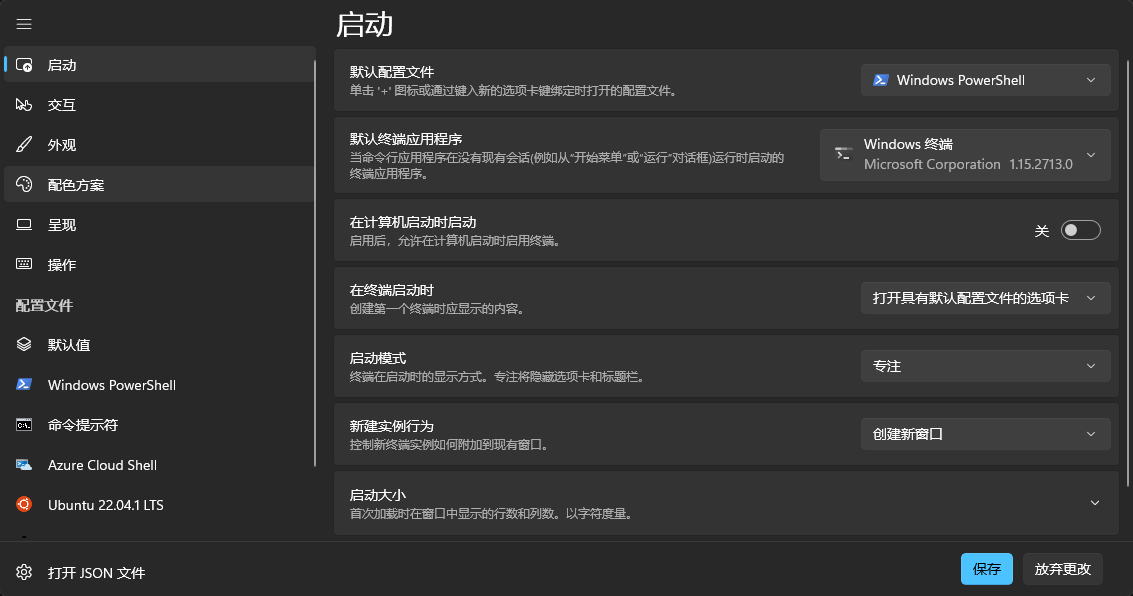
页面如下
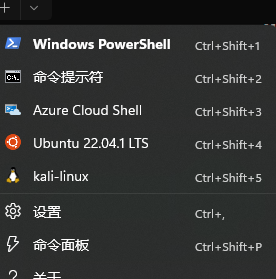
找到 Windows Powershell-外观
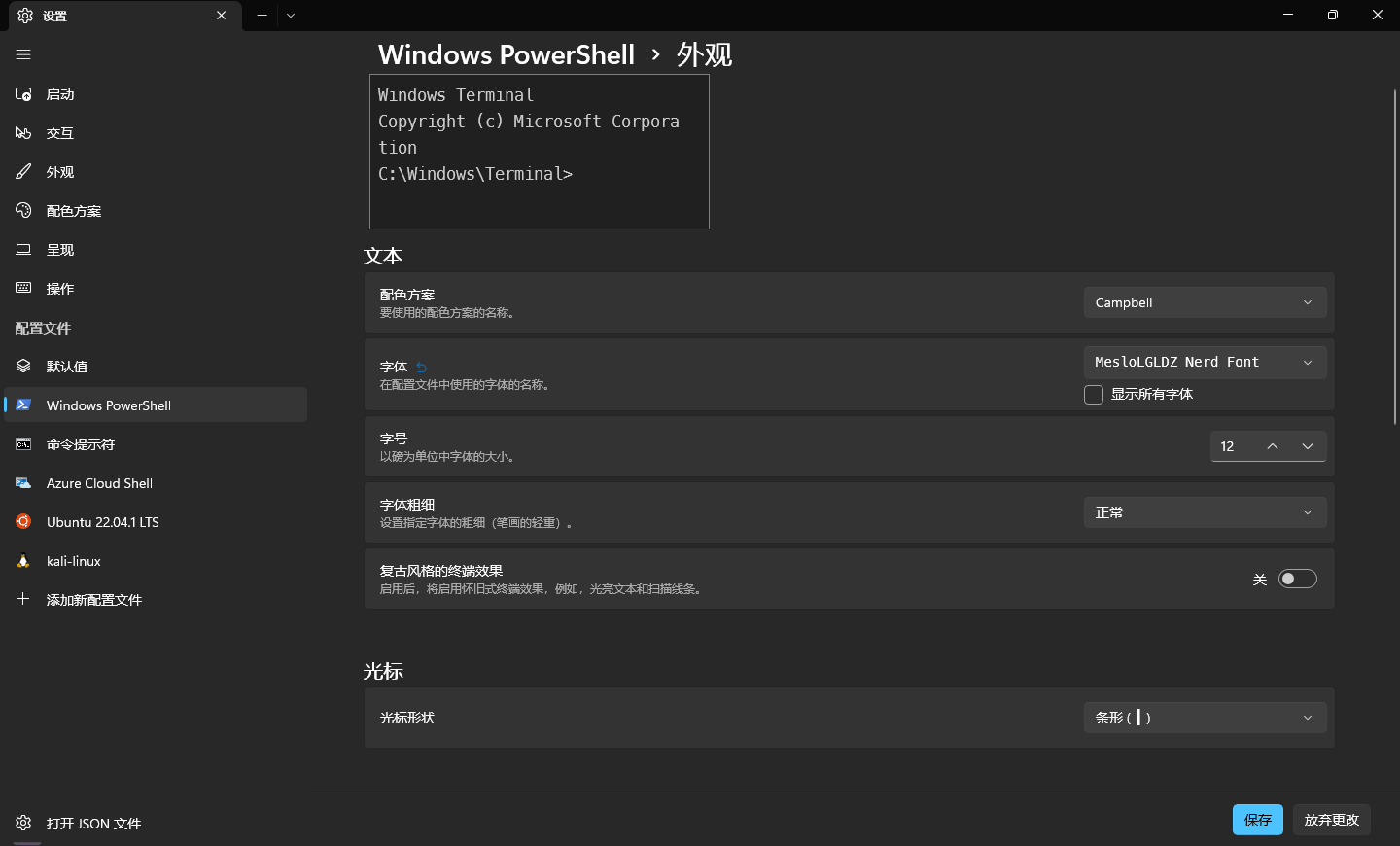
背景与毛玻璃效果
下拉可以找到背景图像和透明度
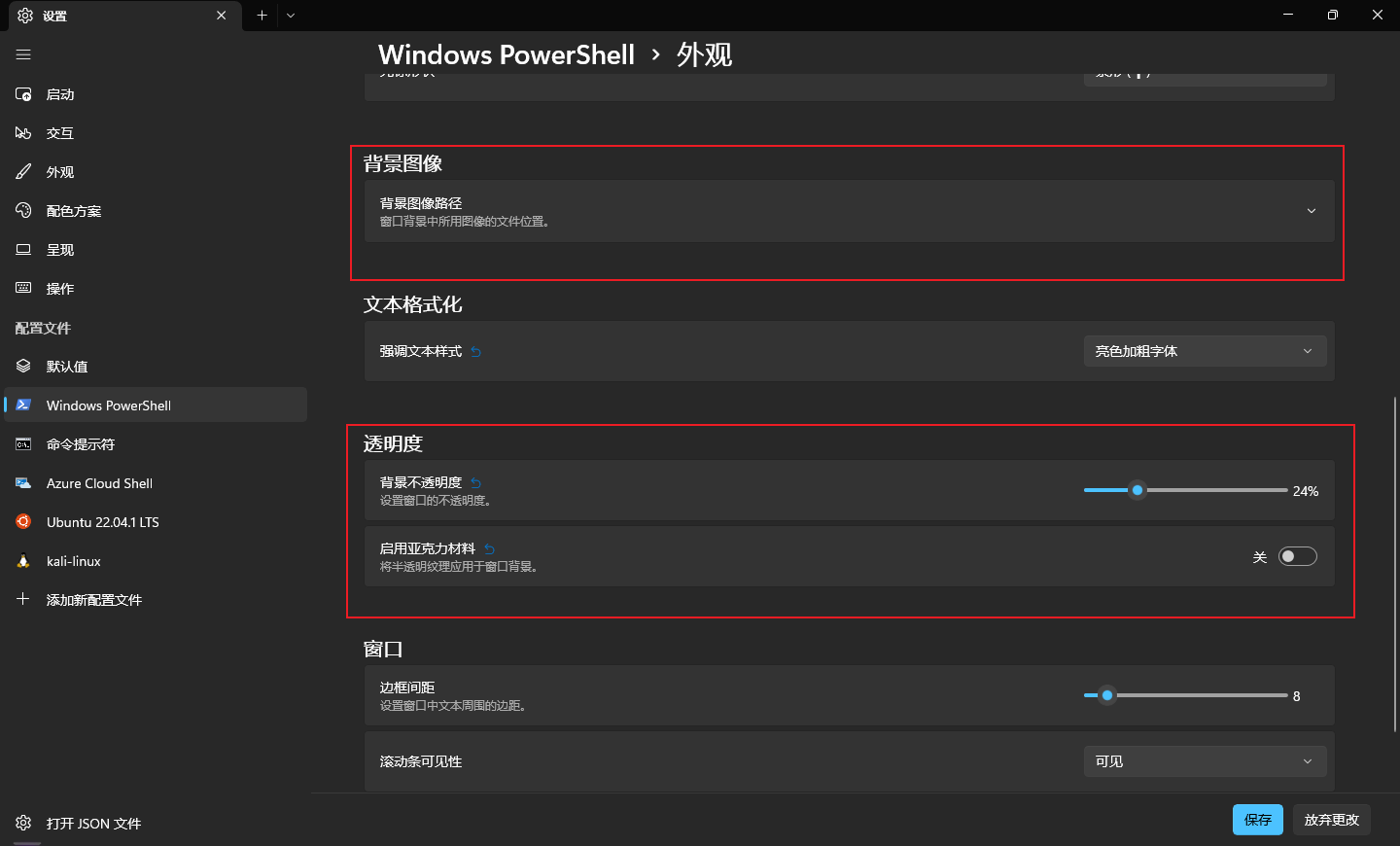
在这里你就可以设置背景图像或调整透明度
启用亚克力板材料可以设置为毛玻璃效果
例如这样(透明度36%)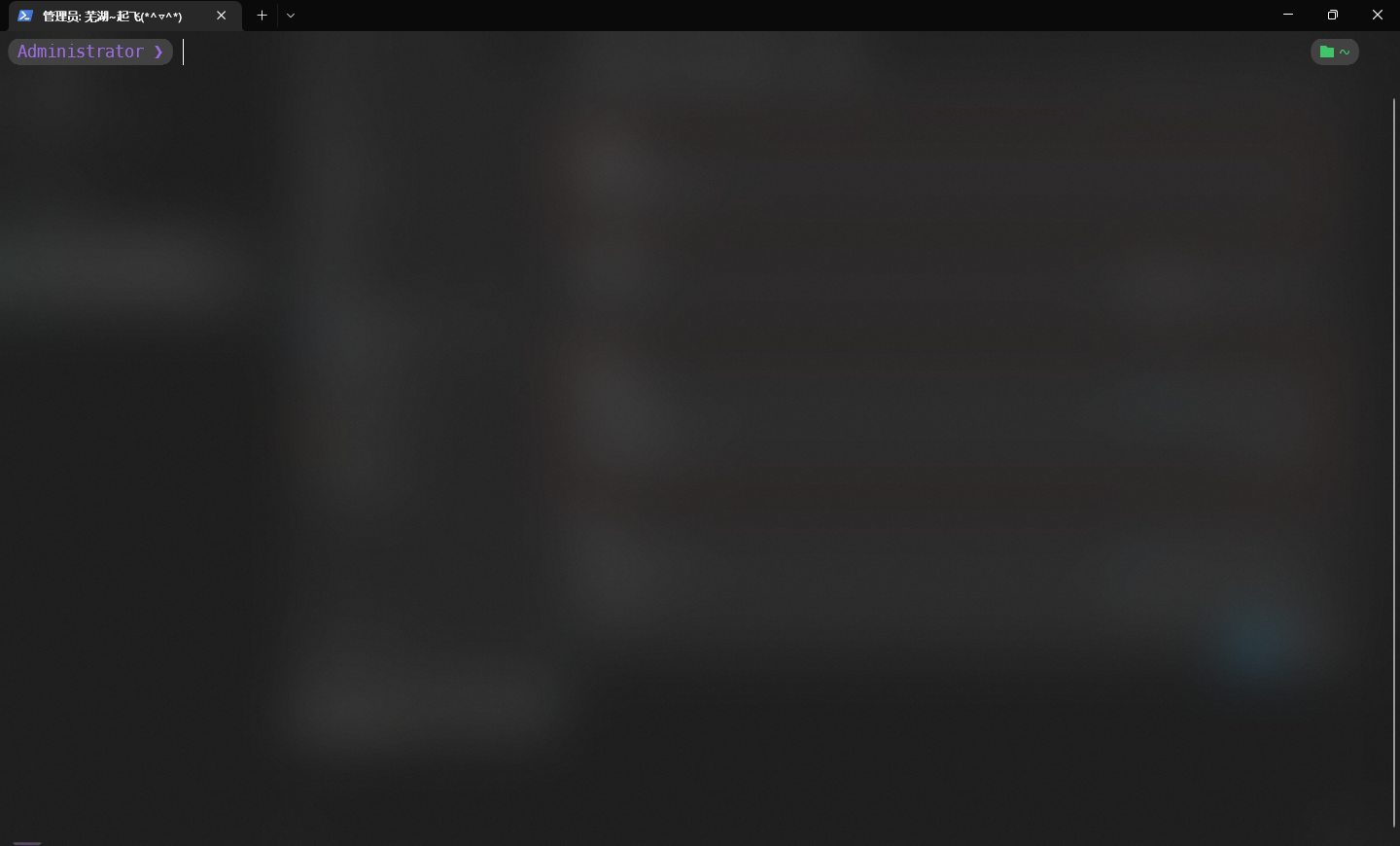
3.oh-my-posh的安装
下载oh-my-posh
你可以直接从微软商店下载oh-my-posh
oh-my-posh - Microsoft Store 应用程序
但是笔者试了好几次都没有成功,所以使用命令进行安装
官方提供了三种安装方式
.winget安装
1 | winget install JanDeDobbeleer.OhMyPosh -s winget |
winget相当于Linux下的apt,也就是软件(包)管理器用途基本一致并且这种方法事实上与直接从微软商店下载无异但是笔者通过此方法安装成功了(喜
.scoop安装
1 | scoop install https://github.com/JanDeDobbeleer/oh-my-posh/releases/latest/download/oh-my-posh.json |
scoop本质上与winget无异,都是用来对软件进行下载,安装,更新与卸载具体用途请到Github了解更多
.通过二进制代码安装
1 | Set-ExecutionPolicy Bypass -Scope Process -Force; Invoke-Expression ((New-Object System.Net.WebClient).DownloadString('https://ohmyposh.dev/install.ps')) |
安装Nerd字体
由于oh-my-posh有一些字体图标,但Windows自带的Cascadia字体无法加载,所以需要下载第三方字体—-Nerd Fonts
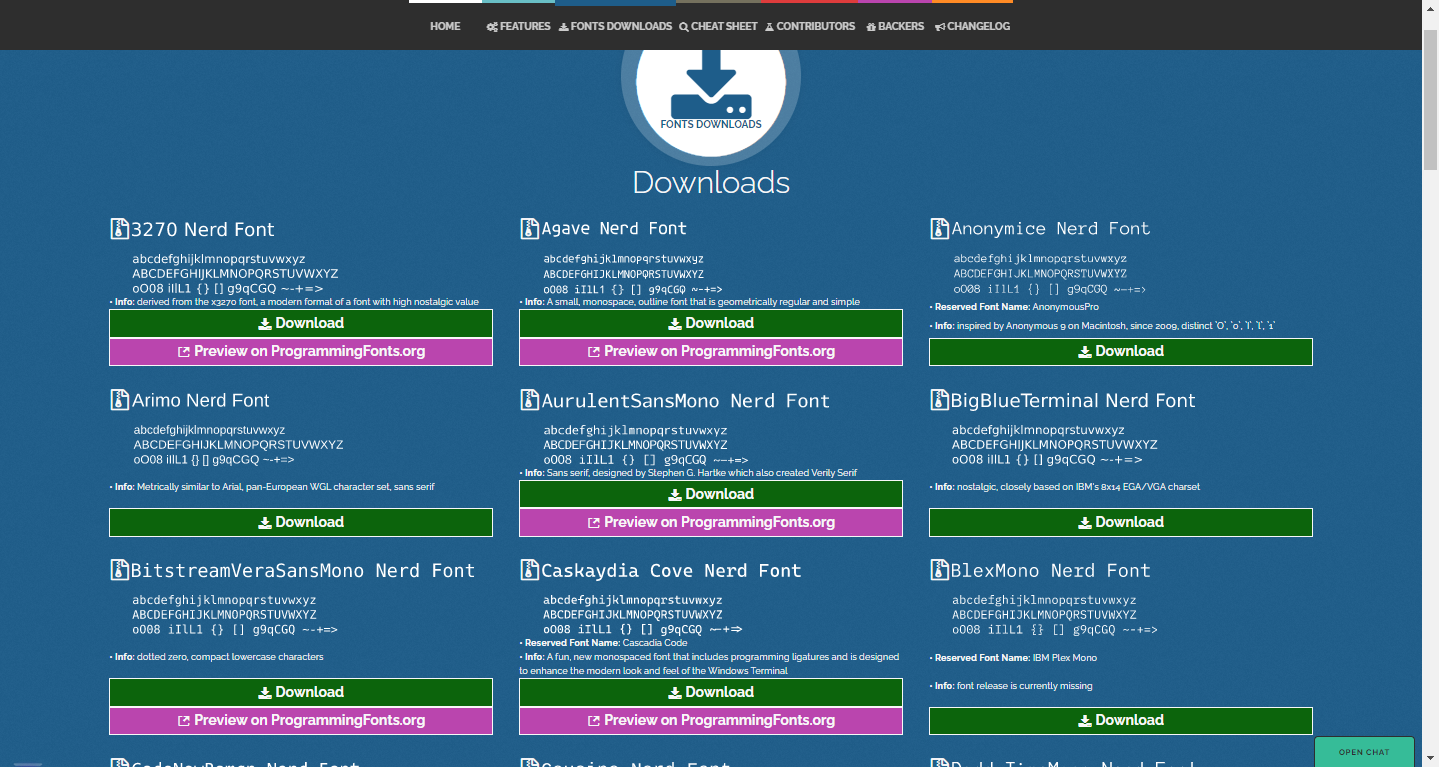
Nerd Font提供了许多字体,官方建议使用Meslo Nerd Font字体,下载后解压安装即可
设置Nerd Font
打开终端设置
找到powershell-外观-字体选择你刚刚下载的字体即可
退出后终端内输入
1 | notepad $profile |
第一次可能会新建,完成后在记事本内输入 oh-my-posh init pwsh | Invoke-Expression
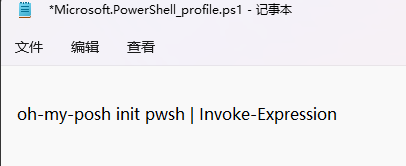
完成后ctrl+s保存然后输入.$profile就可以看到oh-my-posh安装成功了
4.主题设置
官方默认的主题是jandedobbeleer

你可以到C:\Users\Administrator\AppData\Local\Programs\oh-my-posh\themes来浏览所有可以使用的主题
也可以通过输入Get-PoshThemes来预览全部主题
通过POSH_THEMES_PATH``oh-my-posh init pwsh —config “$env:POSH_THEMES_PATH\主题名.omp.json”来设置主题
至此,美化基本完成
5.插件引入
终端输入 notepad $profile,输入
1 | # Shows navigable menu of all options when hitting Tab |
这样就可以实现

 wechat